
You just snapped what you thought was the perfect photo, the lighting, the angle, every detail carefully composed. But then, when you upload it to Instagram, why does Instagram crop photos every time, slicing off important parts or changing the entire feel of your image? You think it’s a glitch, a bug, or just an unfair limitation.
Why should you lose control over your own creativity and vision? It’s frustrating to see your hard work disappear or get distorted without warning. This invisible cropping feels like a silent thief stealing the essence of your photos.
But what if you could understand exactly why this happens and, better yet, how to stop Instagram cropping photos so your images appear exactly as you want? If you’re ready to take control and make your pictures shine without compromise, keep reading!
Got an idea for a cool post? First, save the photo or video you want with the Litedownloader Tools to make it easier to work with.
What is Instagram’s Photo Cropping Feature?
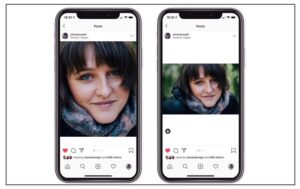
Instagram’s photo cropping feature is a built-in system that ensures every post fits seamlessly into the platform’s design. Since its early days, Instagram has favoured visual harmony, a clean, scrollable grid where every image aligns neatly. The Instagram crop tool maintains that uniform appearance across millions of feeds.
In essence, this Instagram crop photos feature was created for consistency and device compatibility, though it sometimes limits creative control for photographers and designers.
Initially, only square (1:1) photos were allowed. Over time, portrait (4:5) and landscape (1.91:1) orientations were added, but the app still enforces strict Instagram aspect ratio rules. Any image that doesn’t fit these proportions is automatically cropped or zoomed to match, which often trims important details around the edges.
Read more: Do you feel like your photos suddenly appear large and zoomed in? Discover the secrets and tricks in Why Does Instagram Zoom in On My Photos.
What Are the Reasons Instagram Crop Photos When Posting?
If you’ve ever questioned, Why does Instagram crop photos when posting multiple images or singles? The answer lies in a combination of formatting logic and user experience goals.
Want to understand why some photos are cropped and others are not? Take a look at the Instagram Algorithm in 2025 and see what tips make posts visible.”
Aspect Ratio Standardization
Instagram supports three primary aspect ratios:
- Square image format (1:1): The classic Instagram format.
- Portrait (4:5): Ideal for vertical shots.
- Landscape (1.91:1): Best for wide images.
If your upload doesn’t fit one of these ratios, Instagram photo cropping automatically adjusts it (usually by trimming or zooming) so your feed stays consistent across screens.
Carousel Consistency
When posting multiple images in a carousel, Instagram requires all photos to share the same aspect ratio. Uploading a mix of vertical and horizontal shots forces the app to crop them uniformly, which can distort composition if not planned in advance.
Differences Between Post Types
Instagram crop photos work differently across post formats.
- Single posts follow fixed ratios (1:1, 4:5, 1.91:1).
- Carousels force all photos to use the same ratio as the first one.
- Stories and Reels use 9:16, which allows taller, full-view images.
- Choose the format that best fits your composition to avoid unwanted cropping.
Preview and Thumbnail Uniformity
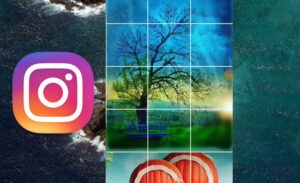
Every profile grid uses square thumbnails. Even if your image is portrait or landscape, Instagram crops the preview to fit this grid layout. This guarantees visual order, but may cut off key elements like faces or text.
Platform Optimization
Cropping isn’t just aesthetic; it’s also functional. Smaller, uniformly sized images load faster and display properly across different devices, reducing distortion and maintaining a smoother scrolling experience.
How to Make Your Picture Fit the Instagram Crop?
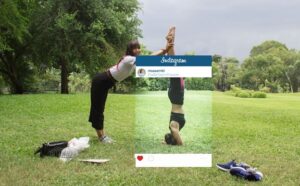
You can easily prevent unwanted cropping with a few smart adjustments. Understanding Instagram photo cropping rules helps you stay in control of your content’s look. When Instagram cropping photos isn’t an option, these techniques help you to upload a full picture to Instagram.
1. Edit Photos to Instagram-Supported Ratios Before Uploading
Preparing your images this way guarantees that Instagram won’t crop or resize them unexpectedly. Use editing tools like Canva, Lightroom, or Photoshop to resize your images to one of these standard dimensions:
- 1080 × 1080 px (Square)
- 1080 × 1350 px (Portrait)
- 1080 × 608 px (Landscape)
Also, adding subtle photo borders for Instagram or increasing canvas space in apps like Photoshop and Canva keeps the full composition intact while meeting Instagram’s aspect ratio requirements.
2. Use the “Expand” or “Fit to Screen” Option
When uploading, pinch the image to zoom out and allow Instagram to add white or black photo borders for Instagram posts. This simple step ensures the entire photo stays visible and helps you stop Instagram cropping photos in unwanted ways.
- Vertical (4:5) images naturally perform better on mobile feeds because they take up more screen space. Adjusting your image to fit this ratio not only prevents cropping but also improves engagement.
3. Post as a Reel or Story for More Flexibility
Stories and Reels provide looser Instagram photo size restrictions than feed posts. If your image is unusually tall or wide, upload it there to maintain composition without heavy Instagram crop photos.
4. Plan Carousel Posts Carefully
Edit all photos in your carousel to the same aspect ratio before uploading. Tools like Kapwing, Wave. Video, or Canva, can batch-resize images easily, helping with consistent Instagram resizing images.
- Instagram converts images to JPEG, so PNG, HEIC, or WebP may appear slightly altered. Export photos as high-quality JPEG (1080 px minimum) for best results and sharper detail after upload, following the platform’s recommended Instagram resolution guide.
5. Preview Your Grid Before Posting
Preview your Instagram grid. You’ll see exactly how the Instagram photo cropping effect impacts your layout before sharing publicly.
Pros & Cons of Instagram Crop Photo
Even though the Instagram crop photos feature can feel restrictive, it comes with both advantages and drawbacks. Here’s a quick breakdown:
|
Aspect |
Pros |
Cons |
|
Feed Aesthetics |
Keeps profiles visually consistent and professional-looking. |
May cut off important details or subjects. |
|
User Experience |
Ensures a smooth, uniform browsing experience. |
Limits creative freedom for photographers and designers. |
|
Performance |
Optimized images load faster across devices. |
Compression can slightly reduce image quality. |
|
Multi-Photo Posts |
Maintains consistent sizing in carousels. |
Forces all carousel images into one ratio. |
|
Branding Control |
Helps brands maintain a clean visual identity. |
Restricts unique layouts or artistic compositions. |
|
Mobile Optimization |
Designed for seamless mobile viewing. |
It can appear zoomed-in or awkward on a desktop. |
Finally
Instead of viewing Instagram photo cropping as a restriction, think of it as a creative framework that shapes how your content appears across millions of devices. Once you understand why Instagram crops photos, you can design with purpose, creating posts that look perfect on every screen.
By editing your images to proper Instagram dimensions, you’ll maintain both consistency and creativity. So, next time you upload, embrace the crop and use it to make your photos look intentional, cohesive, and unforgettable.
Your Turn! Let’s Talk: Have you ever lost part of a great shot because of Instagram’s crop? Share your experience! What’s your go-to resizing tool: Canva, Kapwing, or something else? Tell us below! Save this guide or share it with a friend who’s tired of losing the perfect framing on Instagram!
Why does Instagram automatically crop my photo when I upload it?
Because Instagram limits posts to certain aspect ratios (tallest ≈ 4:5, widest ≈ 1.91:1), if your photo falls outside those bounds, the app will trim it to fit.
What aspect ratios does Instagram support for feed photos as of 2025?
Instagram supports up to ~4:5 (vertical) and ~1.91:1 (horizontal) for full-size; and since mid-2025, it also supports 3:4 portrait (which matches many phone cameras) without cropping.
Can I stop Instagram from cropping my photo so I get the full image visible?
Yes, you can resize or add borders so your image fits within Instagram’s supported aspect ratios, or ensure it’s already within those limits before uploading.
Why do carousel/multi-photo posts get cropped differently than single-photo posts?
The photo is a different orientation or ratio; it may be forced to match the first image’s framing and get automatically cropped.
If I upload a photo in the right ratio, is cropping guaranteed to be avoided?
Not always, even if the ratio is correct, other constraints (resolution limits, orientation mismatch in multi-photo posts, or bugs) may cause unexpected cropping.